Stop Hitting "Not Now" on Apple's Password Suggestions
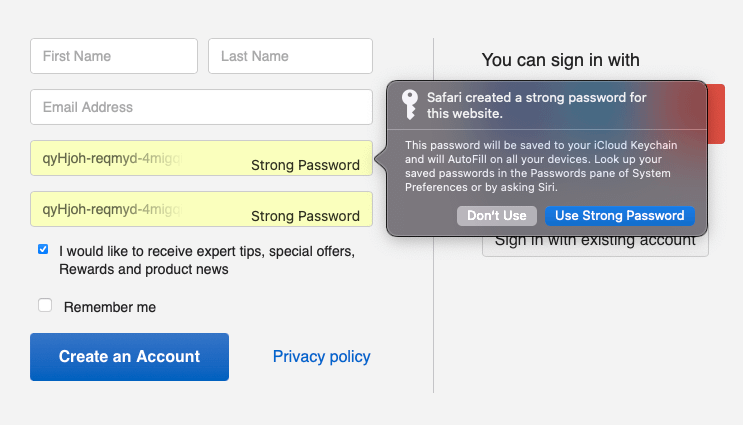
You've seen it a hundred times. You're signing up for something, and Apple pops up with a weird-looking password like xK9#mP2$vL7@nQ4. Your instinct is to dismiss it and type your usual password - the one you can actually remember. But here's the thing: that suggestion might be the easiest security upgrade you'll ever make.
Why Those Random Passwords Matter
Your memorable passwords aren't as clever as you think. That password based on your dog's name plus your birth year? Hackers have tools that try millions of combinations including exactly those patterns. "Fluffy2019!" feels secure but really isn't.
Reusing passwords is the real danger. When you use the same password across sites, one breach exposes everything. LinkedIn gets hacked, and suddenly criminals are trying that password on your bank, email, and Amazon account.
Apple's suggestions are genuinely random. No patterns, no dictionary words, no personal information. They're designed to be impossible to guess - and you don't have to remember them.
How It Actually Works
When you tap "Use Strong Password," Apple does three things:
- Generates a cryptographically random password
- Saves it to your iCloud Keychain automatically
- Fills it in whenever you need to log in - on any Apple device
You literally never have to know what the password is. Your iPhone, iPad, and Mac will fill it in for you.
Where to Find Your Saved Passwords
Need to see a password? Maybe you're logging in on a work computer or need to share access with someone. Here's where to look:
On iPhone or iPad: Open the Passwords app (new in iOS 18), or go to Settings > Passwords. Use Face ID or Touch ID to unlock, then search for the site.
On Mac: Open the Passwords app, or go to System Settings > Passwords. You can also find them in Safari > Settings > Passwords.
In Chrome on Mac: Good news - Apple's passwords sync to Chrome too! Go to Chrome > Settings > Autofill > Password Manager, and you'll see your iCloud Keychain passwords if you've enabled the extension.
Start Converting Your Old Passwords
You don't have to change everything at once. Here's a gradual approach:
1. Accept suggestions for new accounts. Starting today, whenever you sign up for something new, accept Apple's suggestion. No more inventing passwords.
2. Change your most important accounts. Bank, email, and anything with payment info. Go to each site, change your password, and accept Apple's suggestion when it pops up.
3. Fix the rest over time. When you log into an old account and realize you're using a weak password, take 30 seconds to change it. Eventually, everything will be strong and unique.
Apple even helps with this - the Passwords app shows you which passwords are weak, reused, or appeared in data breaches.
What About Phishing?
Here's a security benefit you might not have considered: password managers are phishing-resistant.
Phishing works by tricking you into entering your password on a fake site that looks real. You think you're logging into your bank, but you're actually on "bank-secure-login.fake-site.com."
But Apple's password autofill won't be fooled. It matches passwords to the exact domain where they were created. If you're on a fake site, your bank password simply won't appear as an option. No password suggestion = red flag that something's wrong.
This is why security experts consider password managers one of the best defenses against phishing - they're checking the URL for you, every single time.
What If I Need a Password Manager for Work?
If your workplace uses 1Password, Bitwarden, or another password manager, that's great - use it for work stuff. Apple's Keychain is perfect for personal accounts, and they can coexist peacefully.
The key principle is the same: let the software generate and remember random passwords so you don't have to.
It Syncs Everywhere
As long as you're signed into iCloud, your passwords sync automatically:
- iPhone, iPad, Mac - native integration everywhere
- Apple Watch - yes, you can look up passwords on your wrist
- Windows PC - via iCloud for Windows
- Chrome browser - via the iCloud Passwords extension
No more texting yourself passwords or keeping them in a notes app (please stop doing that).
The Bottom Line
Next time Apple suggests a password, just accept it. You're not giving up control - you're gaining security. The password will be there when you need it, across all your devices, and you'll be protected from the most common ways accounts get compromised.
It's one of those rare cases where the easy thing and the secure thing are actually the same thing.
Want help setting up your passwords? We can help you migrate from sticky notes and spreadsheets to a proper password system - whether that's Apple Keychain or a dedicated password manager. Give us a call.